The Pareo Connector is one container on one virtual machine (VM) in your network. It reads Teamcenter and SAP and sends the result out to Pareo over HTTPS. Pareo never connects into your network (outbound-only). This page tells your IT team and your Pareo admin what to do, in order. Connector security tells your security team what the connector sends and how it proves who it is.
Who does what#
Book one session of about two hours with the Pareo admin and IT together. Finish the checklist below before the session. Most installs stop on a missing permission, not on the install itself.
Before the install: the checklist#
The VM#
| Item | Need | Note |
|---|---|---|
| Operating system | Linux, x86-64 (amd64) | The image is built for amd64 only. A Windows VM or a virtual desktop does not run it. An ARM VM does not run it. |
| Container runtime | Docker Engine with the Compose plugin, or Podman with podman-compose | Rootless Podman works. Docker Desktop on a laptop is not a VM: it stops when the laptop sleeps. |
| CPU and memory | 2 vCPU, 4 GB RAM | The container is limited to 2 GB. |
| Disk | 20 GB free for the container volume | The spool holds at most 5 GB or 14 days of batches. Logs are limited too. |
| Clock | NTP on | Pareo refuses a call from a clock more than 5 minutes off. |
| Uptime | Always on | The connector calls Pareo every minute. A VM that sleeps raises a "silent" alert. |
The network#
| From the VM to | Port | Why |
|---|---|---|
ingest.pareo.ai | 443 | All calls to Pareo. Staging connectors call ingest-staging.pareo.ai. |
europe-west1-docker.pkg.dev | 443 | Only to pull the image and its signature. No login is needed. |
| Your Teamcenter web tier and your SAP Gateway | Their HTTPS ports | These calls stay inside your network. They never go through the proxy. |
| Inbound | none | Open no port. |
Allow the host names where your firewall can. ingest.pareo.ai resolves to one reserved, static address.
If your firewall takes only IP addresses, allow the address that ingest.pareo.ai resolves to. Pareo has no
fixed outgoing address: nothing from Pareo calls your network.
- Proxy. The connector supports a proxy with no login or with Basic login. For an NTLM or Kerberos
proxy, exempt
ingest.pareo.aifrom proxy login, or run a local helper such as CNTLM. - HTTPS inspection. If a firewall or proxy inspects HTTPS, the connector must trust its root certificate. Get the root certificate as a PEM file.
- Internal certificates. Teamcenter and SAP often have certificates from your own certificate authority. The connector must trust that authority too. Put all root certificates into one PEM file, one after the other. The connector reads every certificate in the file.
The Teamcenter technical user#
- A user that logs in with user name and password through the SOA JSON REST interface
(
/tc/JsonRestServices). The connector cannot log in through single sign-on (SSO) or with a certificate. If your Teamcenter uses SSO for people, ask your Teamcenter admin for a technical user with a direct password login. - Read access only. No write access.
- Access to one saved query that finds the released materials, and to the revisions it returns. Tell Pareo support the exact name of the saved query.
- The saved query must return fewer than 250,000 objects. If it returns more, make it narrower, for example to one material type or one owning group.
- A password that does not expire during onboarding, or a process to replace it (see Change a password).
The SAP technical user and services#
The connector reads the SAP S/4HANA standard OData APIs. SAP ECC does not have these APIs. If your system is SAP ECC, tell Pareo support before the install.
-
Activate these services in transaction
/IWFND/MAINT_SERVICE:API_CLFN_PRODUCT_SRV,API_CLFN_CHARACTERISTIC_SRV,API_BILL_OF_MATERIAL_SRV. -
Make a technical (system) user with display rights only (authorization activity 03) for these services and their data.
-
Choose the login: Basic (user and password) or OAuth 2.0 client credentials.
-
Test one call from the VM, with the user, before the session. Keep the single quotes: without them the shell deletes
$top, and the call reads all bills of materials.# Basic curl -u <user> 'https://<sap-host>:<port>/sap/opu/odata/sap/API_BILL_OF_MATERIAL_SRV/A_BillOfMaterial?$top=1' # OAuth: get a token first, then call with it curl -u <client-id> -d grant_type=client_credentials 'https://<sap-host>:<port>/sap/bc/sec/oauth2/token' curl -H 'Authorization: Bearer <access_token>' 'https://<sap-host>:<port>/sap/opu/odata/sap/API_BILL_OF_MATERIAL_SRV/A_BillOfMaterial?$top=1'An answer with data means the service, the user and the network are ready. If SAP uses a certificate of your own certificate authority, add
--cacert corp-root.pem. Note the token URL that worked: it goes intosap.token_url.
Connector security lists every entity set the connector reads.
Test systems first#
Start with your test systems. A connector reads test systems or production systems, never both. One organization does not mix the two: Pareo refuses a second connector for the same system in the other environment while the first one is live. To move to production later, see Move from test to production.
Step 1: the Pareo admin creates the connector#
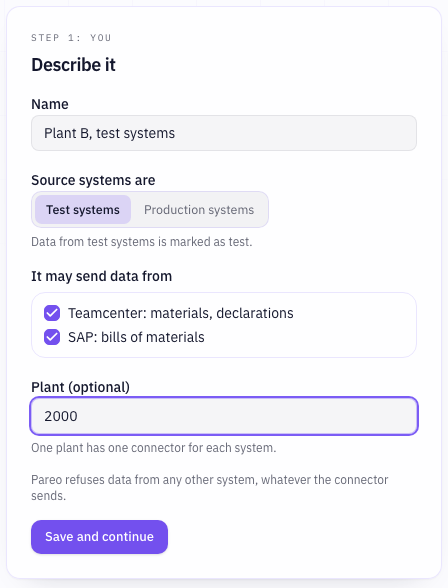
- In Pareo, open Settings → Connections → Pareo Connector and click Add connector.
- Enter a Name, for example "Plant A, test systems".
- Under Source systems are, choose Test systems or Production systems.
- Under It may send data from, tick the systems this connector reads. Pareo refuses data from any other system, whatever the connector sends.
- Enter a Plant only if you plan one connector for each plant.
- Click Save and continue.
- Click Download install package. Give the file
pareo-connector-install.zipto IT through a channel you use for other secrets. It holds the setup key.
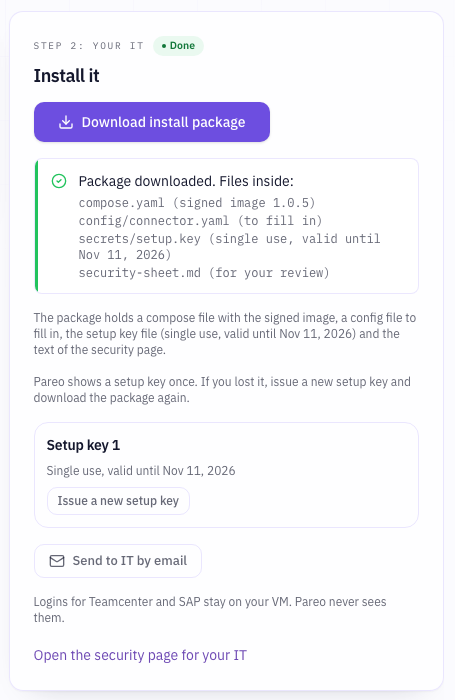
The setup key works once and is valid for 30 days. Pareo shows it only in this download. If the file is lost or the 30 days pass, click Issue a new setup key and download. The old key then stops working.
Send to IT by email writes a message in your own mail program with the compose file and the config file. The setup key is never in that message. Give IT the key file separately.
Step 2: IT installs the connector#
Unpack and verify#
-
Unzip the package into one folder on the VM, for example
/opt/pareo-connector. It holdscompose.yaml,config/connector.yaml,security-sheet.mdandsecrets/setup.key. -
Verify the signature and the software bill of materials of the image. Save the public key from Connector security as
pareo-connector.pub. Take the image reference from theimage:line ofcompose.yaml:cosign verify --key pareo-connector.pub <image>@sha256:<digest> cosign verify-attestation --key pareo-connector.pub --type spdxjson <image>@sha256:<digest>Both commands end with "The signatures were verified against the specified public key".
-
Pull the image and compare its digest with the one you verified:
docker compose pull
docker image inspect --format '{{index .RepoDigests 0}}' <image>
The connector also prints a digest on its first log line. That digest is the value of
PAREO_IMAGE_DIGESTincompose.yaml. It is not a check of the running image. Use the command above for the check.
Fill in the config file#
Open config/connector.yaml. Change only these lines:
| Line | Set it to | Example |
|---|---|---|
proxy | Only with a proxy. Remove the #. | http://proxy.corp.local:8080 or http://user:password@proxy.corp.local:8080 |
ca_bundle | Only with HTTPS inspection or internal certificates. Remove the #. | /etc/ssl/corp-root.pem |
schedule | When the connector reads. Add your time zone. | { delta: "daily 02:00", full: "sunday 03:00", timezone: "Europe/Berlin" } |
teamcenter.url | The Teamcenter web tier | https://tc.corp.local/tc |
sap.url | The SAP Gateway host with its HTTPS port | https://sap.corp.local:44300 |
sap.auth | basic or oauth | basic |
sap.token_url | Only with oauth. Without this line the connector calls sap.url plus /oauth/token. Remove the #. | https://sap.corp.local:44300/sap/bc/sec/oauth2/token |
- The times in
scheduleare UTC if you set notimezone. teamcenter.urlandsap.urlmust usehttps. The connector does not follow redirects.- The proxy is used only for the calls to Pareo. Calls to Teamcenter and SAP go direct.
- The proxy password is the only secret that is written in
config/connector.yaml. Give the file the same file rights as the secret files.
Check the file. The answer names the first error with its line:
docker compose run --rm connector config check
ok config read, no secrets in it
Put the logins into secret files#
Each login file holds two lines: the user (or OAuth client id) on line 1 and the password (or secret) on
line 2. No other text. Write them with a text editor, for example nano secrets/tc_user. A password typed
into a shell command stays in the shell history.
TC_TECH_USER
the-password
The container runs as user 65532, not as root. It must be able to read the files. With Docker:
sudo chown -R 65532:65532 secrets
sudo chmod 500 secrets && sudo chmod 400 secrets/*
With rootless Podman, user 65532 in the container is a different user on the VM. Give the files to it
with podman unshare:
chmod 500 secrets && chmod 400 secrets/*
podman unshare chown -R 65532:65532 secrets
To change a secret file later, for example a new password or a new setup key, use sudo (Docker) or
podman unshare (rootless Podman), for example podman unshare nano secrets/tc_user.
With rootless Podman, also add :Z to each bind mount in compose.yaml on a VM with SELinux, as the
comment in the file shows. Never add :Z to the /etc/hostname line: it relabels a system file of the VM.
compose.yaml also mounts the /etc/hostname of the VM, read-only. The connector reports this name to
Pareo, and Pareo accepts data only from the approved host name. A new container, for example after an
update, keeps the name of the VM, so it stays approved.
Mount the root certificates#
If you set ca_bundle, put the PEM file next to compose.yaml as corp-root.pem. Then remove the # in
front of the line ./corp-root.pem:/etc/ssl/corp-root.pem:ro in compose.yaml. The container then sees
the file at /etc/ssl/corp-root.pem, the path in ca_bundle. With rootless Podman on a VM with SELinux,
add ,Z here too.
Check and start#
-
Run all checks. Nothing is sent.
docker compose run --rm connector checkok trusts the company root certificate from ca_bundle ok reached ingest.pareo.ai through proxy.corp.local .. not joined yet: the source checks run after Pareo approved the connectorThe Teamcenter and SAP checks run only after the approval in step 3, because the connector first needs its extraction profile from Pareo. Test the SAP and Teamcenter logins before with your own tools (see the checklist).
-
Start the connector.
docker compose up -d
docker compose logs -f connector
With Podman, use
podman-composein place ofdocker compose. -
Read the log. Expect these lines:
ok connector 1.0.5 (image sha256:a4f9867a4252, as pinned in compose.yaml) ok key pair created on this VM, fingerprint 2CF8 A59B 879F 5EFC D38D F4AD 535B 2651 ok setup key accepted .. waiting for approval in Pareo (asks again every minute, no deadline). Compare fingerprint 2CF8 A59B 879F 5EFC D38D F4AD 535B 2651 -
Read the fingerprint to the Pareo admin, by phone or in the session. Do not send it through the same channel as the package.
Check your field mapping#
Do this before you approve. The connector reads only the fields of your systems that are mapped to a Pareo field. A field that is not mapped is not read.
- Open the connector in Pareo and click the tab Field mapping. Each row shows the Pareo field, the name of the field in your system, and the system the connector reads it from.
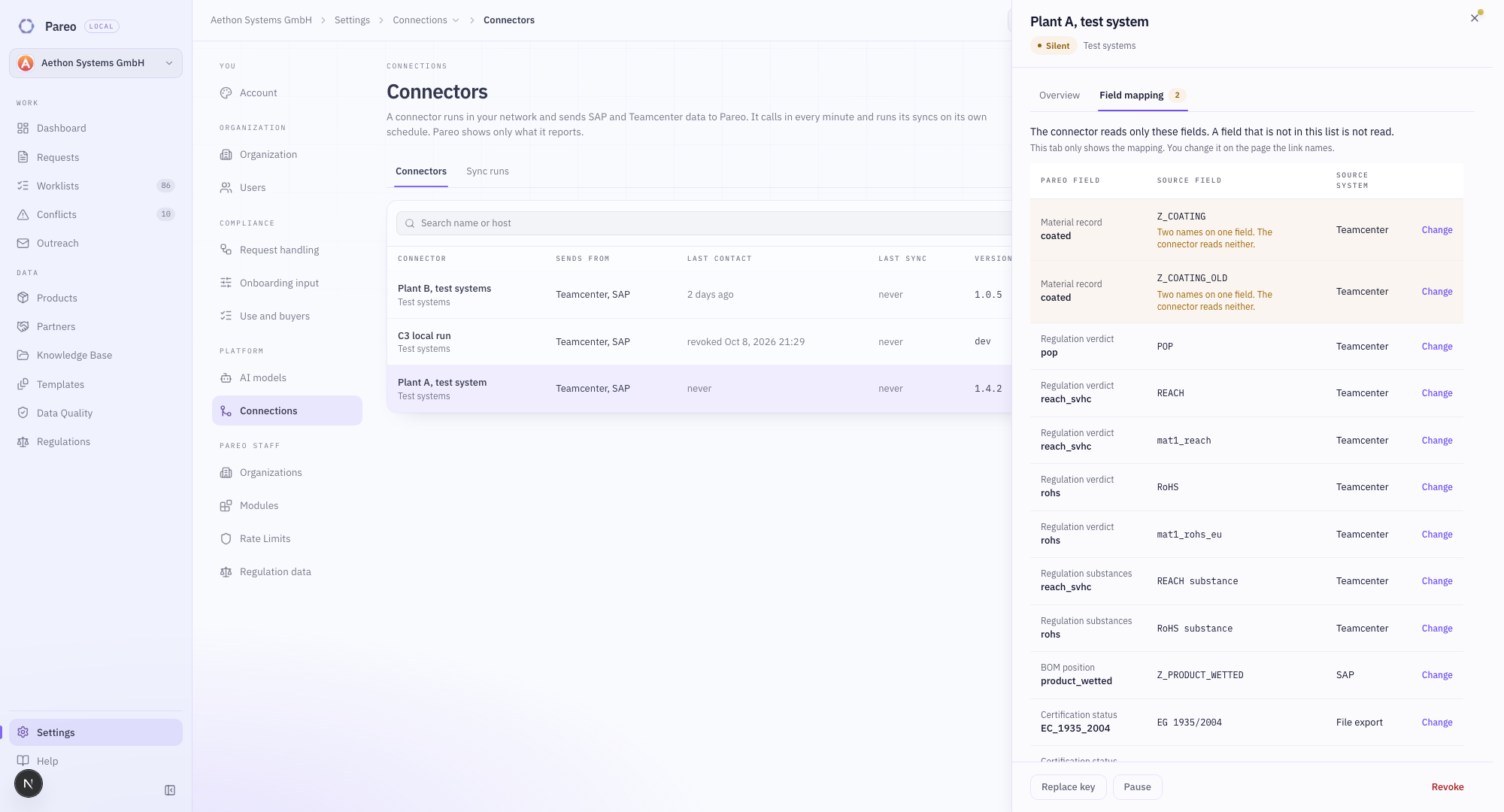
- Give the list to the person who approves the data that leaves your network, for example your security team.
- A row with a warning is not read: two names on one field, a Pareo field that does not exist, or a name the connector cannot read. Click Change on the row and correct the mapping on that page. The tab only shows the mapping. It does not change it.
After the approval, IT can count what the connector would read. Nothing is sent:
docker compose run --rm connector dry-run
ok   teamcenter: 1,812 released materials read from 2,040 revisions in 10 blocks of 200
     field mapping, records with a value:
       "Material code"                1,812 of 1,812
       "REACH status"                 1,640 of 1,812
       "UBA criteria"                     0 of 1,812
     dry run: counted only, nothing was sent.
The dry run prints only names and counts, never a value. A field with 0 records usually has a wrong name in the mapping.
Step 3: the Pareo admin approves#
- Open the connector in Pareo. The card Waiting for your approval shows the host name, the IP address, the version and the fingerprint.
- Type the fingerprint that IT reads into Fingerprint IT reads (optional). Pareo compares the two.
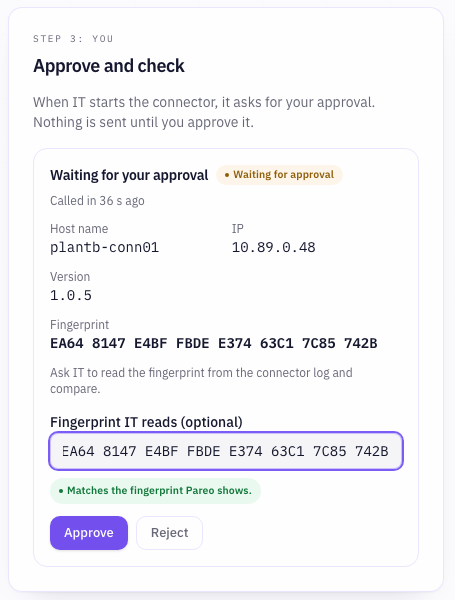
- If the card says Matches the fingerprint Pareo shows, click Approve. If it does not match, do not approve. Click Reject and issue a new setup key.
- Pareo runs the first checks: the connection to Pareo, the Teamcenter login and saved query, and the SAP login. Nothing is sent during the checks. The result also shows in the connector drawer (see Run it every day). A check that fails names its cause, as in When something goes wrong.
After the approval, the connector fetches its signed extraction profile and starts its first full read at once. It does not wait for the schedule. The log shows:
ok   approved by Pareo, organization <your organization>, may send: teamcenter, sap
ok   extraction profile 0f61bda8b713a564 installed, signature verified
ok   teamcenter login, saved query "<name>": 861 revisions found
ok   sap login, bills of materials readable
     teamcenter run started: full
Check the first sync#
Open Settings → Connections → Pareo Connector → Sync runs. Each run shows its result, the rows it wrote, the rows it withdrew and the batches.
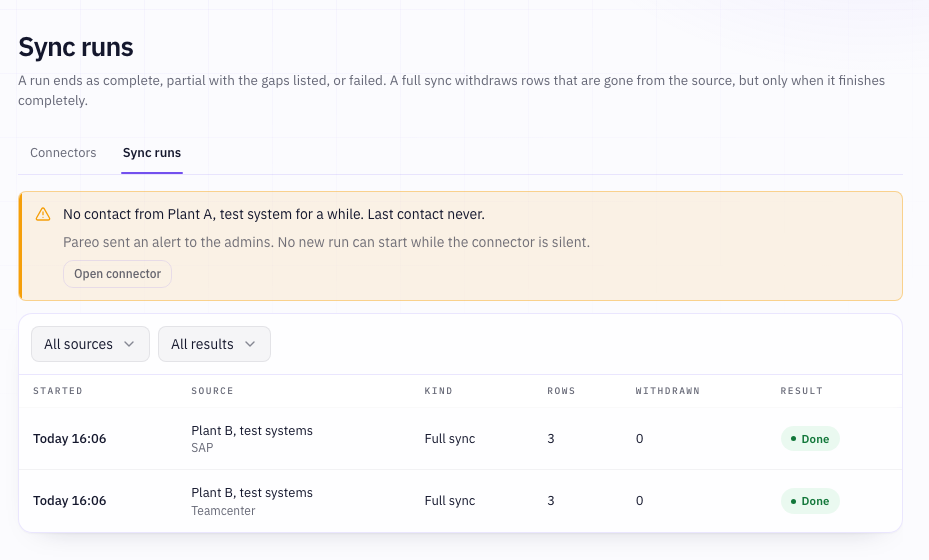
| Result | Meaning | Rows withdrawn |
|---|---|---|
| Done | The read was complete | Only a complete full run withdraws rows that are gone from the source |
| Partial | Some records were held back or a part could not be read. The rest is written. | None |
| Failed | The read stopped. The records it got are written. | None |
Teamcenter reports more revisions than records. The connector sends one record for each item: the newest released revision. That difference is normal.
A first full read of a large Teamcenter takes time. The connector reads in blocks of 200 records. Each block is one call to Teamcenter.
When a run fails, the log names the cause and the time of the next try, 30 minutes later. Fix the cause.
While the first full sync is still missing, docker compose restart connector starts it at once.
What the connector does with incomplete or wrong data#
Your data does not have to be clean. The connector and Pareo check each record alone. A bad record is held back with its reason, and the rest of the run goes in. The run then counts as Partial, and a partial run never withdraws rows.
| In your system | What happens | Where you see it | Who fixes it |
|---|---|---|---|
| An item with no released revision | Not read. Pareo reads only released revisions. | Run drawer: numbers not released | Teamcenter: release it, if it should count |
| All revisions of an item are obsolete | Read as retired, with no release status | Product shows as retired | Nobody, if correct |
| Several released revisions | The newest released revision counts | Nothing | Nobody |
| Empty properties (a missing SAP reference, an empty verdict) | The record goes in with the empty fields. Pareo shows the gap on the product. | Product: missing value; data quality list | Teamcenter or SAP owner |
| Contradictory values (for example "not coated" with a coating) | The values go in as they are. Pareo does not choose between them. | Product page | Teamcenter or SAP owner |
| A verdict word Pareo does not know (for example "maybe" in the RoHS field) | The record is held back with the field, the word and what to do. The rest of the run goes in. | Run drawer: records held back | Pareo admin: add the word under Settings → Configuration → Verdicts. The next run reads the record. |
| A certification word or scheme Pareo does not know | The record is held back with its reason. A scheme your organization switched off is ignored, as before. | Run drawer: records held back | Pareo admin: add the word under Settings → Configuration → Certifications |
| A value Pareo cannot read (a date that is not a date, a quantity that is not a number, a negative quantity) | The record is held back with its reason | Run drawer: records held back | Teamcenter or SAP owner, then the next run reads it |
| A text longer than Pareo stores | The record is held back with its reason | Run drawer: records held back | Teamcenter owner |
| Two different items with the same number | Both are held back: "two source items carry the number ... the source must give each material one number". The material Pareo already holds stays as it is. The same record sent twice counts once. | Run drawer: records held back | Teamcenter owner: give each material its own number |
| A bill of materials that contains itself (a cycle) | Held back as nested too deep | Run drawer: records held back | SAP owner |
| Several bills of materials for one material | Held back as ambiguous, unless your Pareo setup names the plant, the usage and the alternative | Run drawer: records held back | Pareo admin: set plant, usage and alternative |
| An item that is no longer in the saved query, or was deleted | The next complete full read withdraws the verdicts and statements that this source gave it. The material stays in the catalogue without them. | Sync runs: rows withdrawn | Nobody, if correct |
| A saved query with 250,000 objects or more | The Teamcenter read stops. Nothing is withdrawn. | Check fails; alert | Teamcenter admin: make the query narrower |
| The technical user loses the right to read some items | To Pareo this looks the same as deleted items. A full read that returns less than half of the last full read is refused: Pareo writes nothing and alerts your Pareo admins. A smaller loss is withdrawn at the next complete full read. | Bell: "full read refused, nothing written"; Sync runs | Teamcenter admin: rights of the technical user. If the smaller set is correct, the Pareo admin accepts the run (see A full read is refused). Change the rights only together with your Pareo admin. |
Records held back show their id and their reason only. Property values never leave the VM in a log.
Run it every day#
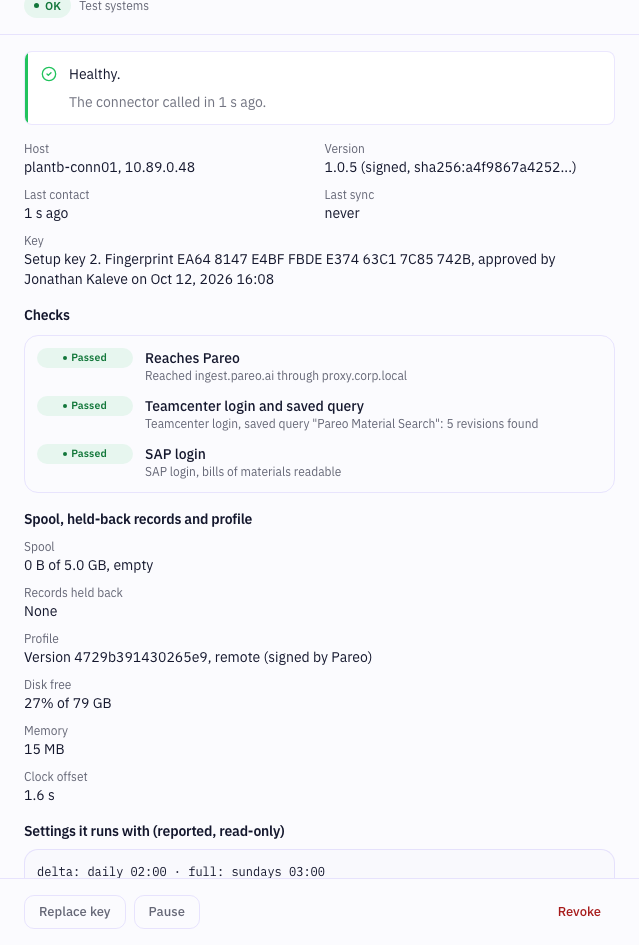
- Schedule. By default a delta read runs every day at 02:00 and a full read every Sunday at 03:00
(UTC, unless you set
timezone). Only the full read withdraws rows that are gone from the source. - Status. The connector list shows each connector with its state. OK means it called in during the last minutes and its checks pass.
- Alerts. Pareo tells your Pareo admins through the bell, and Pareo support, when a connector is silent for 2 hours, a run fails or is partial, a run did not reach Pareo's rows, the disk or the spool is full, a check fails, or a new version is available. Each cause is told once.
- Ask the connector. In the connector drawer, the Pareo admin can run the checks, sync named products now, ask for diagnostics, and raise the log level to debug for a short time. A request reaches the connector at its next call, within a minute.
Maintain it#
Change the config file#
Edit config/connector.yaml, then check it:
docker compose run --rm connector config check
The running connector reads the change within a minute. No restart is needed. A config with an error never stops the connector: it keeps the last good config and logs the line of the error.
An older install package mounts ./connector.yaml as a single file. Many editors save a new file in place
of the old one, and then the container cannot see the change. With such an install, run
docker compose restart connector after each change, or take the volumes lines from a new install
package.
Update the connector#
Pareo does not push updates. When a new version is released, the connector page says Version X is available, and the Pareo admins get one notification.
- Download the install package again in Pareo (no new setup key is needed), or take the new
image:line andPAREO_IMAGE_DIGESTfrom Pareo support. - Verify the new image with
cosign, as in step 2. - Change the
image:line andPAREO_IMAGE_DIGESTincompose.yaml. Keep yourconfigfolder and your secrets. - Run
docker compose pullanddocker compose up -d. - The first log line shows the new version. The connector page shows it within a minute.
To go back, put the old image: line back and run docker compose up -d. The state volume stays.
Pareo has a minimum supported version. Below it, the connector still reports its status, but Pareo takes no data from it, and the page says No longer supported. After the update it syncs again on its own.
Change a password of Teamcenter or SAP#
- Write the new password into
secrets/tc_userorsecrets/sap_client, on line 2. - Run
docker compose run --rm connector check.
No restart is needed. The connector reads the secret files when it uses them.
After a refused login, the connector stops that source so that it does not lock the account. It tries
again when the secret file changes, or after connector check. Change the file in Teamcenter or SAP and
on the VM at the same time.
Replace the key of the connector#
Do this when the setup key or the VM may be exposed, or when the state volume is lost.
-
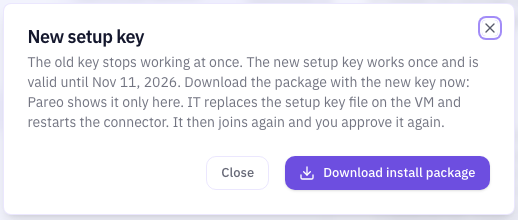
The Pareo admin opens the connector and clicks Replace key, then downloads the package with the new setup key. The old key stops working at once.
-
IT replaces
secrets/setup.keywith the new file and restarts the container:docker compose restart connector. -
The connector sets the old key pair aside, makes a new one and joins again.
-
The Pareo admin compares the new fingerprint and approves again. The synced data stays.
Move the connector to another VM#
- Stop the old container:
docker compose down. - The Pareo admin clicks Replace key and downloads the package with the new setup key.
- IT installs it on the new VM, as in step 2, with the same
configfolder and secrets. - The Pareo admin approves the new host.
Do not copy the state volume to a second VM. Pareo accepts data only from the approved host. A copy shows as Cloned VM and its data is refused.
Back up#
Back up the folder with compose.yaml, config and secrets. The state volume holds the key pair
of the connector, its checkpoint and its spool. A backup of the state volume is not needed: if it is lost,
replace the key as above, and the next full read reads everything again.
Move from test to production#
- Revoke the test connector in Pareo.
- Create a new connector for Production systems, as in step 1.
- Install it on a VM that reaches the production systems, with production technical users.
The rows from the test connector stay, marked as test data.
A full read is refused#
A full read that returns less than half of what the last full read returned looks like lost access, not like deleted data. Pareo then writes nothing from it, keeps all rows, and tells your Pareo admins: "full read refused, nothing written".
- Ask IT and the Teamcenter or SAP admin whether the technical user lost rights, or whether the saved query changed. If so, they fix it. The next full read is checked again.
- If the smaller set is correct, for example after a planned clean-up, the Pareo admin opens the run under Sync runs and clicks Accept this smaller read. Pareo then writes this run and withdraws the rows the source no longer has. Pareo records who accepted it. Later full reads are compared with this run.
Pause, revoke and remove#
- Pause stops all syncs. The connector still calls in. Resume starts them again.
- Revoke stops all data from the connector at once, and it cannot be undone. Synced data stays, with its last sync time.
- To remove the connector from the VM, revoke it first, then run
docker compose down -vand delete the folder.-vdeletes the state volume with the private key.
When something goes wrong#
Each console line starts with ok, fix or ... A fix line names the cause and the next step. These
are the lines you are most likely to see.
| The log or the check says | Cause | Fix |
|---|---|---|
cannot reach ingest.pareo.ai: unknown_authority | A firewall or proxy inspects HTTPS | Set ca_bundle and mount the root certificate |
cannot reach ingest.pareo.ai: proxy | The proxy refused the connection | Check the address in proxy, and that the proxy allows port 443 to ingest.pareo.ai |
cannot reach ingest.pareo.ai: dns | The VM cannot resolve the name | Check the DNS of the VM, or set proxy |
cannot reach ingest.pareo.ai: timeout or refused | The firewall blocks the call | Allow outgoing 443 to ingest.pareo.ai, or set proxy |
the VM clock differs from Pareo by ... | The clock of the VM is wrong | Turn on NTP |
Pareo did not accept the signature ... | Wrong connector_id, or the clock is more than 5 minutes off | Check both. If the state volume was lost, replace the key. |
setup key not accepted / was used already / expired | The key was replaced, used on another host, or is older than 30 days | The Pareo admin issues a new setup key. Replace secrets/setup.key and restart. |
ca_bundle cannot be used | The file is missing or holds no PEM certificate | Mount a PEM file at the path in ca_bundle |
secret file ... cannot be read / holds N lines, expected 2 | The file is missing, has the wrong rights, or the wrong form | Two lines, readable by user 65532 |
teamcenter login refused | Wrong user or password, or no password login for this user | Fix secrets/tc_user. Ask for a technical user without SSO. |
teamcenter did not answer | Wrong teamcenter.url, or the web tier is down | Check the URL ends with the web tier path, for example /tc |
teamcenter login works, but the saved query was not found | Wrong query name, or the user cannot see the query | Check the name with Pareo support and the rights of the user |
teamcenter saved query ... returns 250000 or more objects | The query is too wide | Make the query narrower |
sap login refused (401) | Wrong user or password | Fix secrets/sap_client |
sap user has no authorization for <service> (403) | The user logs in but may not read the service | SAP Basis grants read access to the service (SU53 shows the missing authorization) |
sap has no service <service> at ... (404) | The service is not active, or the system is SAP ECC | Activate it in /IWFND/MAINT_SERVICE. SAP ECC is not supported. |
... is stopped after a refused login | A refused login stopped the source to protect the account | Fix the secret file. The source starts again when the file changes. |
the extraction profile cannot be used / the profile from Pareo was refused | The image does not fit the environment, for example a staging image with a production connector | Use the image from the install package of this connector |
config is invalid: ... the last good config stays in force | An error in config/connector.yaml, or, with an older single-file mount, the editor replaced the file | Run config check and fix the line. With a single-file mount, restart the container. |
cannot reach ingest.pareo.ai: proxy_auth | The proxy asks for a login (407) | Check the user and password in proxy |
only N MB free on the state volume | The disk is almost full | Give the volume more space. The connector stops reading and keeps uploading. |
Bell: full read refused, nothing written | A full read returned less than half of the last full read | See A full read is refused |
Pareo revoked this connector's key | An admin revoked the connector | Ask the Pareo admin. A revoked connector needs a new install. |
Pareo refused ...: This connector waits for approval | Not approved yet | The Pareo admin approves |
Pareo refused ...: ... approved for another host | The state volume was copied to another VM, or the VM was renamed, or an older install reports the container's name and the container was recreated | Delete a copy. For a renamed VM or an older install, the Pareo admin clicks Replace key, IT takes the new install package and the admin approves again. |
host name file ... cannot be read or is empty | The /etc/hostname line is missing in compose.yaml | Take the volumes and environment lines of a new install package |
.. host name is the container's | An older install package, without the /etc/hostname line | Take the volumes and environment lines of a new install package before the next update |
What to send Pareo support#
- The output of
docker compose run --rm connector check. - The last lines of
docker compose logs --tail 200 connector. - The connector name and the time of the problem.
The log holds record ids, counts and errors, never property values or passwords. Do not send the
secrets folder or the setup.key file. Your Pareo admin can also click Send diagnostics: Pareo then
gets the settings without secrets, the check results, the last log lines and the run counts.